TyperMate

Why I Made TyperMate
macOS is powerful—but if you work in multiple languages, it can feel clunky. After learning my third language and switching between macOS and Windows at work, I wanted something better. So I built TyperMate to make input switching and navigation effortless.
- Fast, predictable switching - Switch to any input source instantly with custom hotkeys. A clear popup shows exactly which input method you’re using—no guessing.
- Windows-style navigation - Love shortcuts like Home/End to jump lines or Enter to open files? TyperMate brings these familiar behaviors to macOS.
- Clear input display - Icons aren’t enough. See your input method as text for clarity—perfect for juggling multiple languages.
- Lightweight & private - Runs fully offline. Your data stays on your Mac, always.
- Persistent input popup - Never wonder what you’re switching to—even if you use three or more languages.
Download the latest release now: TyperMate 0.0.1
How TyperMate Solves Your Problems
Per-Input Hotkeys + Popup Confirmation
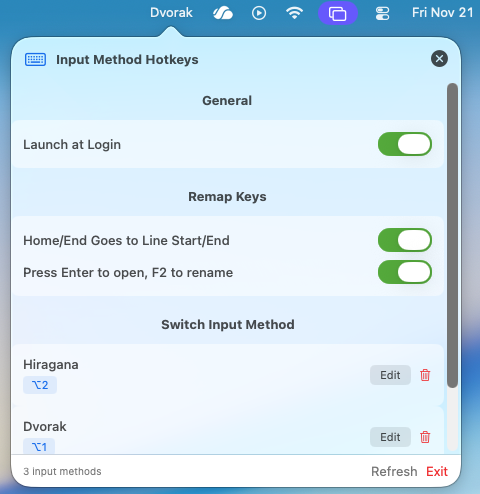
Assign a global hotkey to any input source and switch instantly. A small, non-intrusive popup shows the active input method so you always know what you’re typing with.
Familiar Navigation & Finder Keys
Optionally remap Home/End to jump to line start/end, and (in Finder) make Enter open files while F2 renames—so macOS can feel more like the workflow you expect.
Launch At Login & Privacy-Focused
Run at login for instant availability. TyperMate is lightweight, runs locally, and does not send data over the network.
Internationalization (i18n)
Use the app in your language — TyperMate supports localization.
Who Is TyperMate For
- Multilingual users who switch between multiple input methods every day
- Developers and writers who want fast, efficient text navigation
- Anyone frustrated by macOS’s input method quirks
- Power users looking for more control and customization over their keyboard
What Makes TyperMate Different
- Per-input-source hotkeys — assign a global hotkey to any input method
- Popup indicator — a compact, non-intrusive popup shows the active input method
- Remap Home/End to line start/end to match Windows/Linux behavior
- Remap Enter/F2 in Finder — press Enter to open items and F2 to rename, matching common Windows behaviors
- Launch At Login so TyperMate is always running when you need it
- Lightweight & private — no network calls, focused on keyboard workflows
- Open source and easy to customize
Get Started in Minutes
- Download the latest release: TyperMate 0.0.1
- Drag
TyperMate.appto your Applications folder - Open the app and grant necessary permissions
- Set up your hotkeys and preferences in Settings (per-input hotkeys, remapping toggles, launch-at-login)
Screenshots